Account
You reach your account settings from the topbar, via the icon with your initials. From that menu you switch between light/dark mode, open your user settings (/user/settings) and send feedback (/user/feedback). This page also explains how to recover your password if you can no longer log in.
User settings
The User settings page (/user/settings) consists of two stacked forms: updating your profile and changing your password. The page is available in every environment.
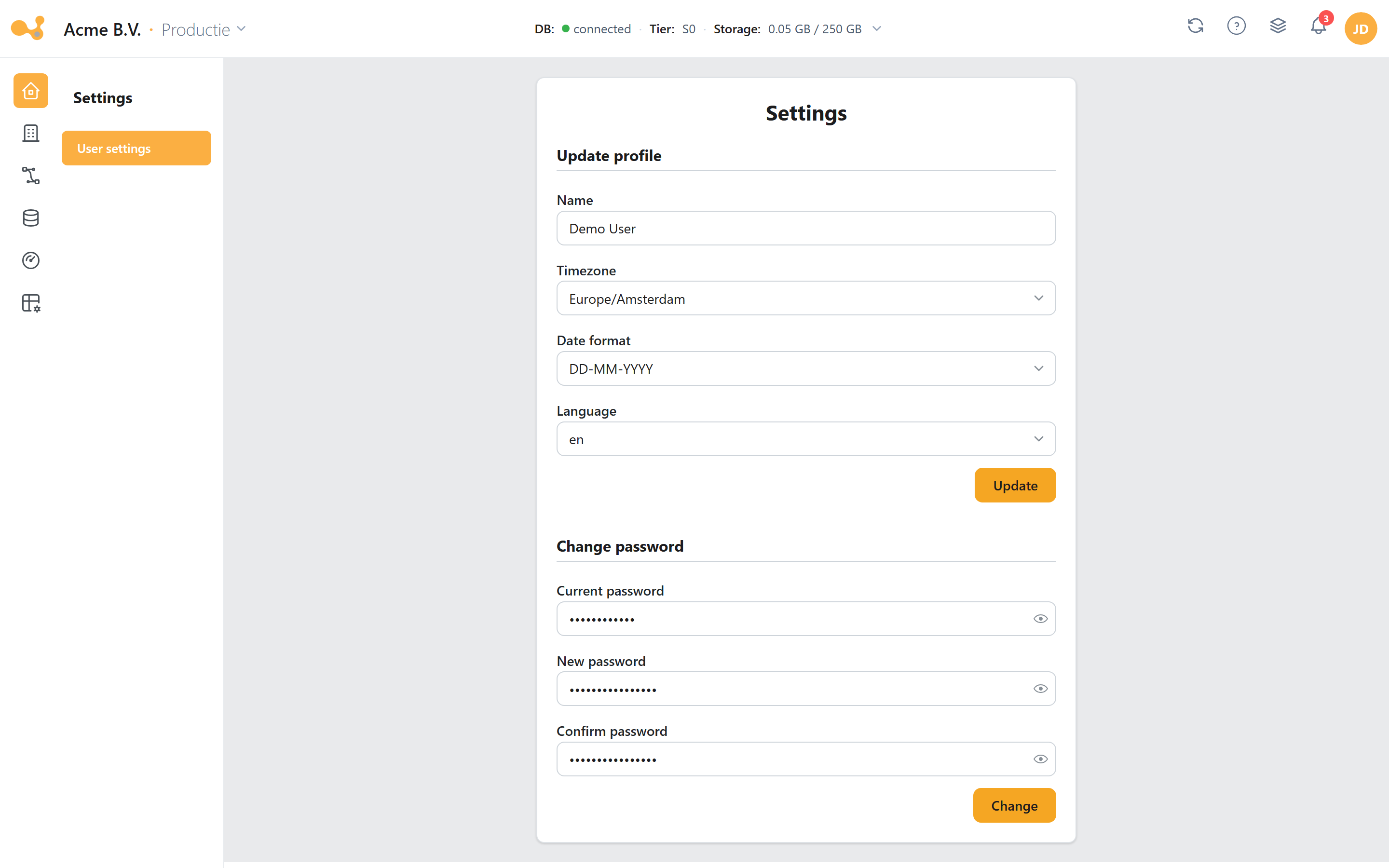
Two stacked forms: your profile at the top (name, time zone, date format, language), the password change below it. The dark-mode toggle sits in the same container.
- Profile form — Name, Time zone, Date format and Language.
- Update — saves your profile (
PUT /user/profile-information). - Password form — Current password, New password (at least 12 characters) and Confirm password (must match).
- Change — saves the new password (
PUT /user/password). - Dark-mode toggle — switch light/dark mode within the container.
Update profile
Adjust the following fields and click Update:
| Field | Description |
|---|---|
| Name | Your display name. |
| Time zone | Determines how timestamps are displayed and which time zone is used when you schedule a trigger (see below). |
| Date format | How dates are shown in the application; this is also stored in your session. |
| Language | Interface language: en, nl or de. |
The email address linked to your account is used for password recovery and as the reply-to for feedback. You cannot change this address yourself on this page: the settings screen (UserSettings) only contains name, timezone, date format and language. An email change goes through an administrator/invitation.
Change password
In the second form you change your password:
- Enter your current password.
- Enter a new password of at least 12 characters.
- Repeat the password under Confirm password (must match exactly).
- Click Change.
Time zone and timestamps
Your chosen time zone determines two things:
- Display — timestamps in logs, monitoring and overviews are shown in your time zone.
- Triggers — when you schedule a pipeline trigger, the specified time is interpreted in your account time zone.
The trigger scheduling screen shows the hint "Timezone UTC(+1) will be used". That does not match what actually happens: the backend uses the logged-in user's time zone (Auth::user()->timezone) and converts it to the matching Windows time zone. A trigger you schedule for 08:00 therefore runs at 08:00 in your account time zone — so set your time zone correctly here before creating triggers.
See Load management for creating and managing triggers.
Feedback
Send feedback directly from the frontend via Feedback (/user/feedback). The reply goes to the email address linked to your account.
Feedback is split into three categories:
- Bug report — report problems with the application.
- Feature request — request new or improved features.
- Feedback — general feedback on Yres or on processes.
Feedback from the three in-app categories goes to feedback@yres.app (from version 1.56; before that Feedback@iris-dwh.nl), with your account address as the reply-to.
Forgot and recover password
If you can no longer log in, use the recovery flow. It consists of two screens: requesting a recovery email (/forgot-password) and setting a new password via the link in that email (/reset-password/:token).
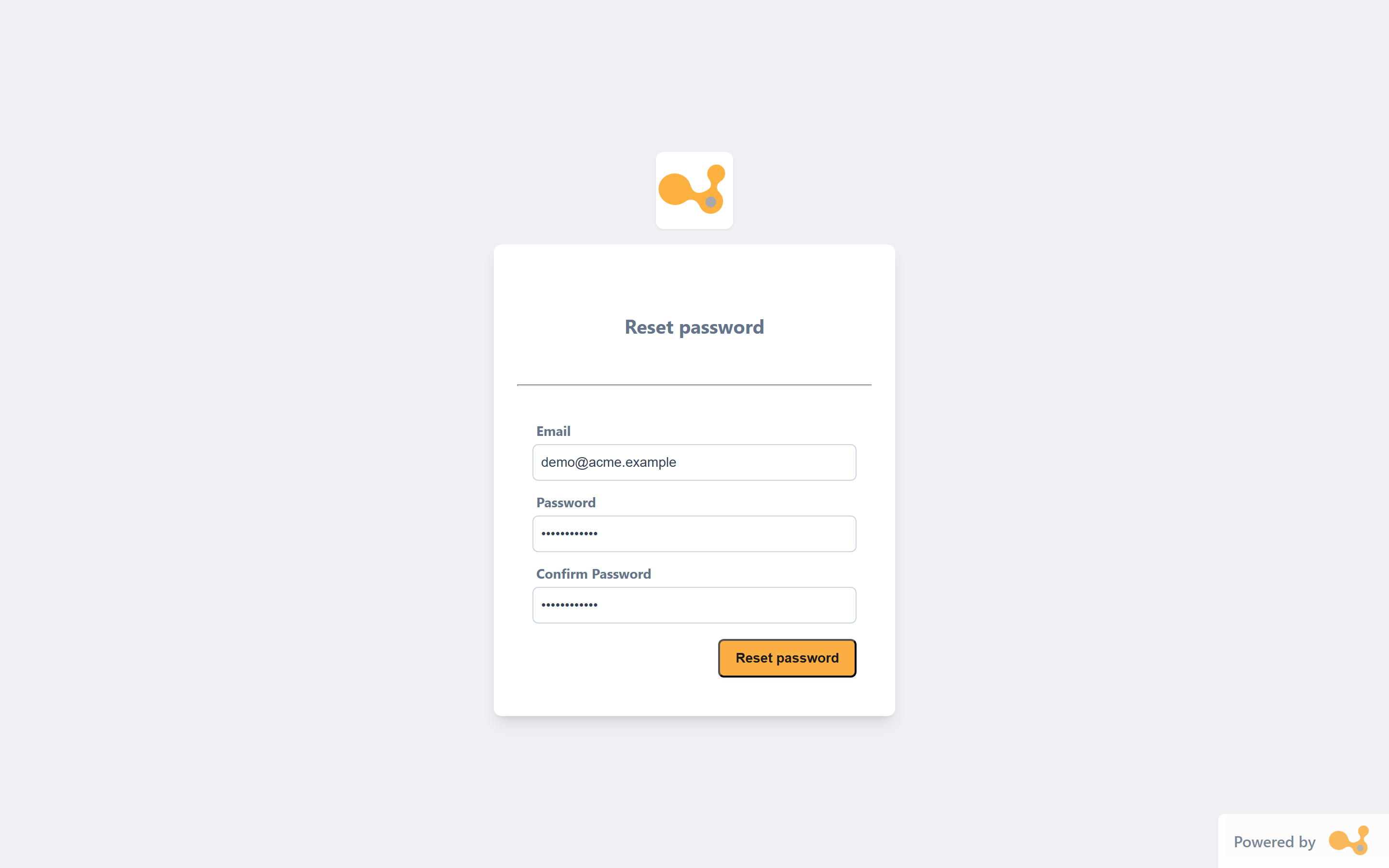
Left: "Forgot password" with a single email field. Right: "Reset password" with email, new password and confirmation.
Step by step
- On the login screen, click "Forgot password?".
- On Forgot password (
/forgot-password) enter your email address and click "Reset password". You see the message "Reset email sent if the account exists". Use "Sign in" to return to the login screen. - Open the recovery email and click the link; it takes you to Reset password (
/reset-password/:token). - Enter your email, a new password (minimum 12, maximum 50 characters) and Confirm Password (must match).
- Click "Reset password". On success you are redirected back to the login screen.
| Screen | Route | Fields |
|---|---|---|
| Forgot password | /forgot-password | |
| Reset password | /reset-password/:token | Email, Password (min. 12, max. 50), Confirm Password |
For security reasons, the recovery-email message does not confirm whether the email address exists: you always get the same confirmation. The :token in the reset link is single-use and belongs to the requested recovery email.